Logins for your cloud server
What to bring for each platform, and the one-time first sign-in each login needs before a server can connect it. Do the first sign-in on your own computer before you add the login - a login that has not done it is refused, and a server never retries a refused login by itself, so it cannot get locked.
Add a server
- 1
Choose the platform
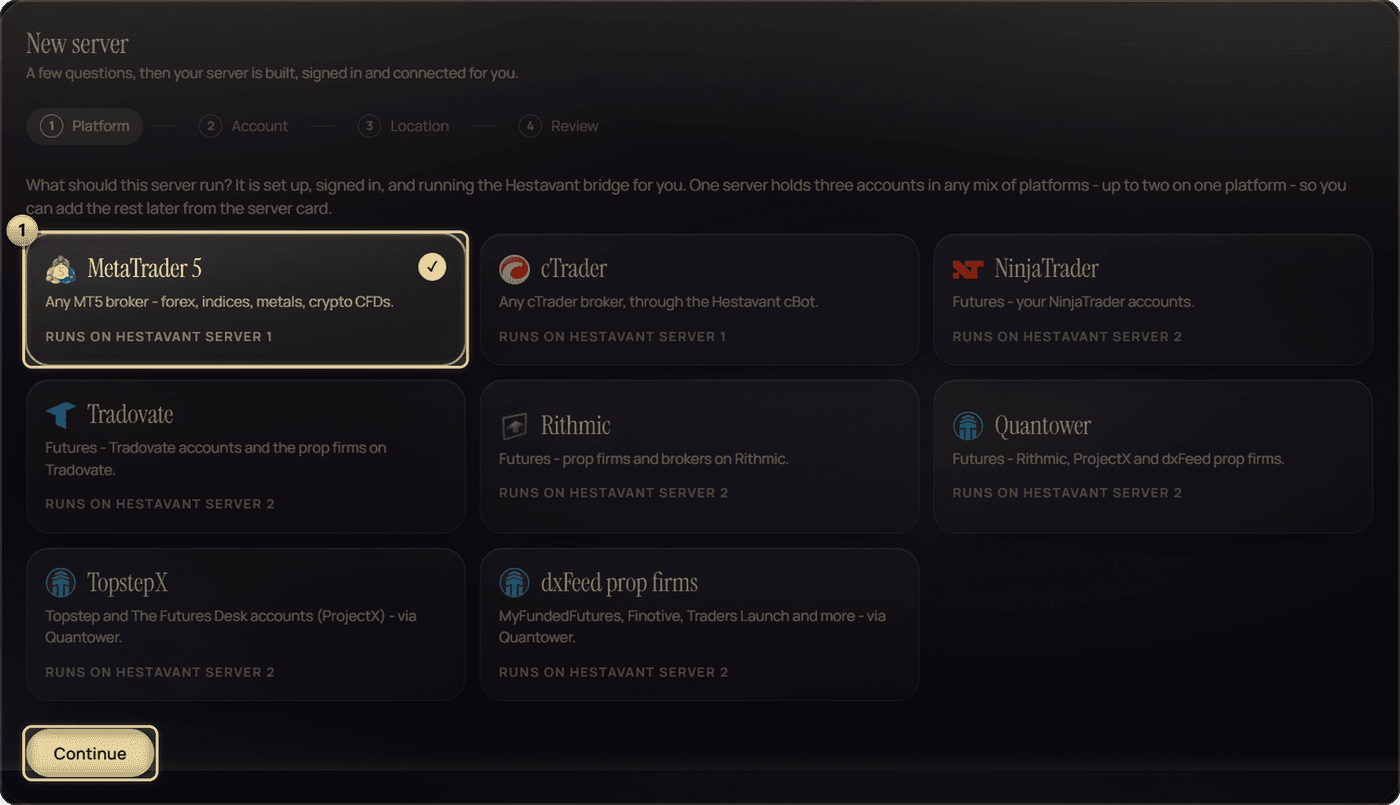
Go to Servers → Cloud servers. Under New server, pick the platform the server should run and click Continue.
- 2
Enter the account
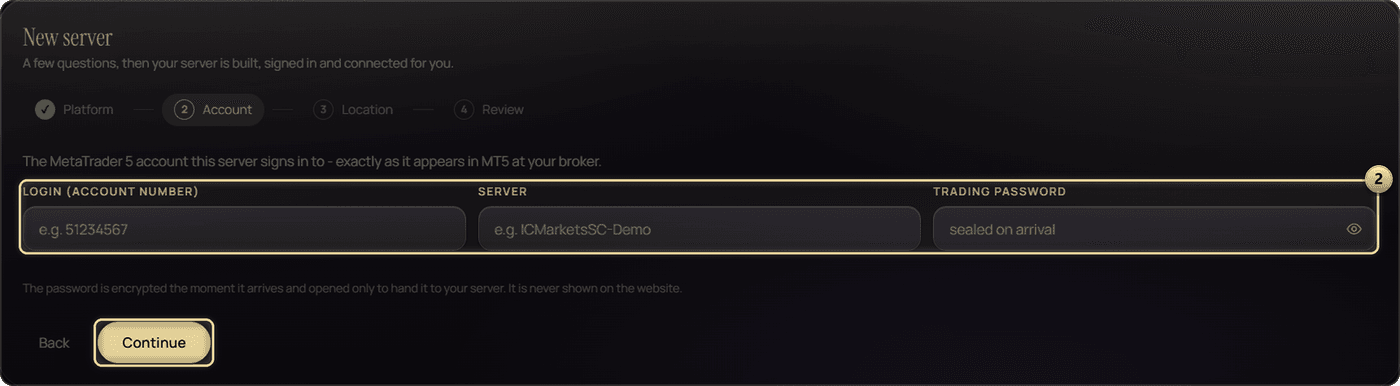
Fill in the login exactly as your platform shows it - what each platform needs is listed below. The password is sealed the moment it arrives and is never shown on the website.
- 3
Pick a location and review
The location nearest your broker's servers is picked for you - the nearer, the faster your orders fill - and you can choose any other. Then check the summary under Review and create the server. It is built, signed in and connected for you.
- 4
Check that it is running
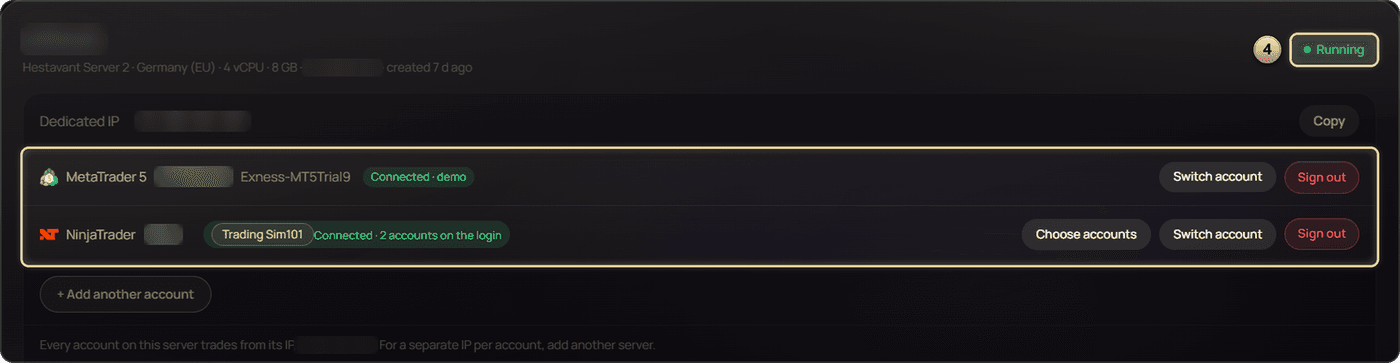
The server card reads Running and each account Connected. Use + Add another account for up to three accounts on one server, all trading from its dedicated IP.
Logins by platform
NinjaTrader
Hestavant Server 2What to bring
- Your NinjaTrader login - the username and password you sign in to NinjaTrader with. It is free: if you have none, use Create a free login in the setup.
- Some prop firms run their accounts on NinjaTrader itself and send you a NinjaTrader login - use that one.
Once, before you add it
- 1Sign up with an email and a password, not Google or Apple - the server signs in with a username and password, and a Google or Apple login has none.
- 2Confirm the email NinjaTrader sends you, then sign in once at account.ninjatrader.com to check the login works.
- 3Use the login on one server at a time: NinjaTrader signs a login out of any other computer it is open on.
If it is refused
- “Too many incorrect login attempts”
- NinjaTrader has paused the login for a while after wrong passwords. Wait, then use Try again - the server never retries a refused login by itself, so it cannot make the pause longer.
- The login works on my computer but not on the server
- Close NinjaTrader on your computer first - one login runs in one place at a time.
Tradovate
Hestavant Server 2, beside NinjaTraderWhat to bring
- The Tradovate username and password your prop firm or broker gave you for this account - not your login to the firm's own website.
- The account type: Demo for prop firm accounts (evaluations and most funded accounts - your firm's help centre confirms), Live only for your own brokerage account.
- A NinjaTrader login on the same server - Tradovate connects through NinjaTrader.
Once, before you add it
- 1Sign in once at trader.tradovate.com with that username and password, in a browser on your own computer.
- 2Accept the terms it shows, sign the market data agreement and the CME self-certification - choose Non-Professional unless you trade professionally.
- 3Check an account is listed there. A login with no active account (an evaluation that ended, not started yet) signs in on the website but cannot connect a platform.
If it is refused
- “Logon failed”
- Tradovate turned the login down. Check, in this order: the username and password exactly as the firm sent them; the first sign-in above is done; the login has an active account; Demo / Live matches the account.
- Connected, but “no trading account on this login”
- The login is fine and has nothing to trade yet. When your firm puts an account on it, it appears by itself.
Rithmic
Hestavant Server 2, beside NinjaTraderWhat to bring
- The Rithmic username, password and system your prop firm gave you (the system is often your firm's name, e.g. Apex or TopstepTrader).
- A NinjaTrader login on the same server - Rithmic connects through NinjaTrader.
- One Rithmic login per server. A second Rithmic login goes on another server - your plan's second server or an added one.
Once, before you add it
- 1Install R | Trader Pro (Rithmic's own free app) on your computer and sign in once with the same username, password and system.
- 2Sign the market data agreements it shows - choose Non-Professional unless you trade professionally. Rithmic connects nowhere until they are signed.
- 3Close R | Trader Pro afterwards: Rithmic allows the login in one place at a time.
If it is refused
- Refused although the password is right
- The agreements in R | Trader Pro are not signed yet, or the system chosen is not the one your firm named. Both are shown in your firm's welcome email.
- It connected, then dropped
- The same Rithmic login was opened somewhere else (R | Trader Pro, another platform). Close it there.
MetaTrader 5
Hestavant Server 1 - or Server 2 beside NinjaTraderWhat to bring
- The account number, the trading password (not the investor / read-only password) and the server name exactly as your broker or firm wrote it (e.g. ICMarketsSC-Live07).
- Up to two MT5 accounts per server, each in its own copy of MT5.
Once, before you add it
- 1Nothing to do first - the server finds your broker by itself. On a Server 2 the first MT5 account installs MT5 there (a few minutes, once).
If it is refused
- “The broker did not accept this login”
- Check the account number, that the password is the trading one, and the server name letter for letter - Live and Demo servers have different names.
cTrader
Hestavant Server 1What to bring
- Your cTrader ID (the email or username you sign in to cTrader with) and its password, and the account number to trade.
Once, before you add it
- 1If you sign in to cTrader with Google or Apple, your cTrader ID may have no password yet - set one in your cTrader ID settings first.
If it is refused
- “cTrader did not accept this cTrader ID and password”
- cTrader never says which one is wrong - check both, and use the cTrader ID password, not a broker or MT5 password.
Rules on platforms, automation and servers differ between prop firms - check your firm's rules before trading live.