Set up MetaTrader 5
You need MetaTrader 5 installed and logged in to your account, and Hestavant Desktop signed in on the same computer.
Beta - test on a demo account first and tell us if anything behaves unexpectedly.
- 1
Choose MetaTrader 5 on the website, install the EA
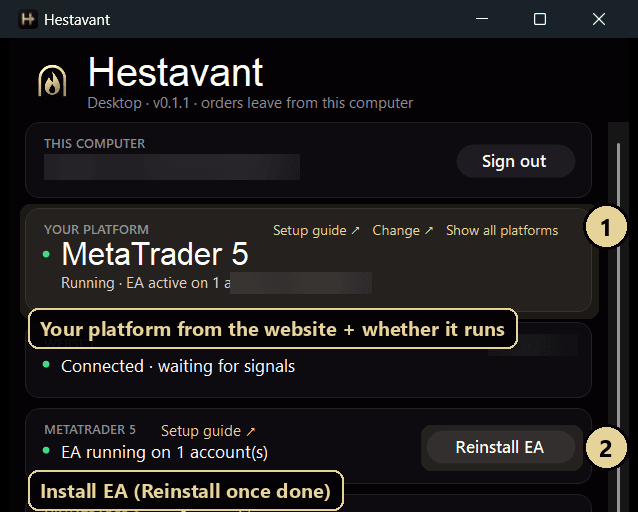
On the website choose MetaTrader 5 as your platform - during setup, or later under Settings → Trading platform. Hestavant Desktop then shows Your platform: MetaTrader 5 at the top.
In its MetaTrader 5 card click Install EA. It is copied into every MetaTrader 5 terminal on this computer, ready to use - nothing to compile.
- 2
Attach it to one chart
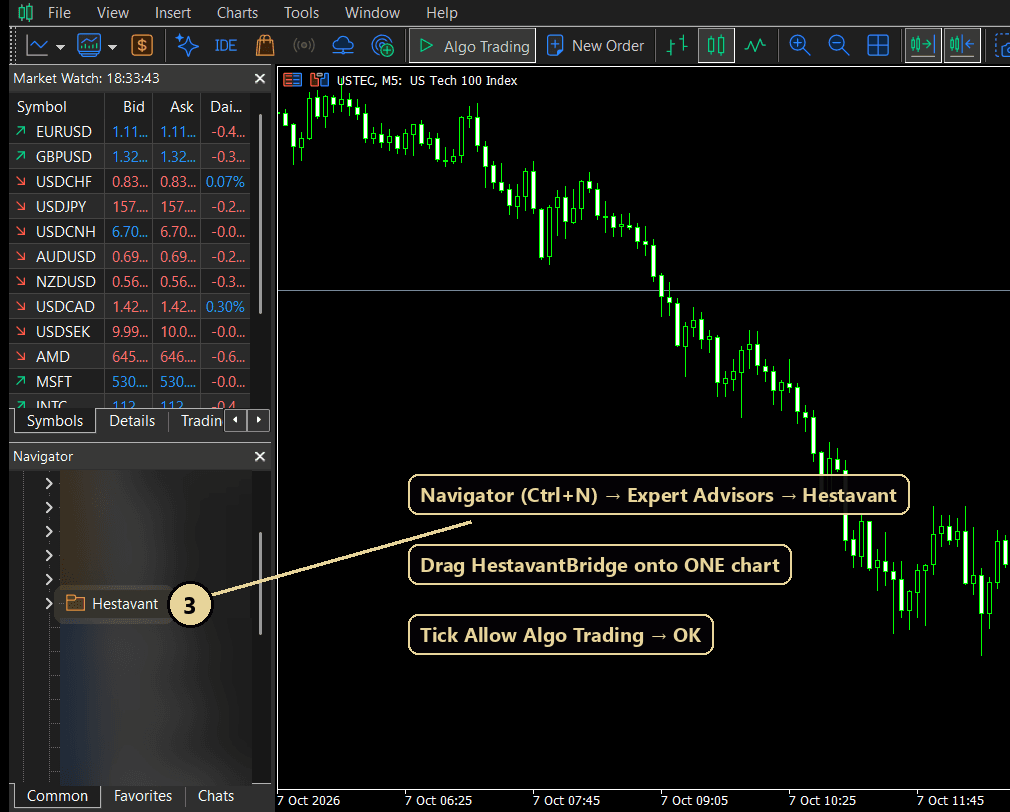
In MetaTrader 5 open the Navigator (Ctrl+N) → Expert Advisors → Hestavant, and drag HestavantBridge onto any one chart - one per account is enough, whatever symbols you trade. In the window that opens, tick Allow Algo Trading and click OK.
- 3
Turn on Algo Trading
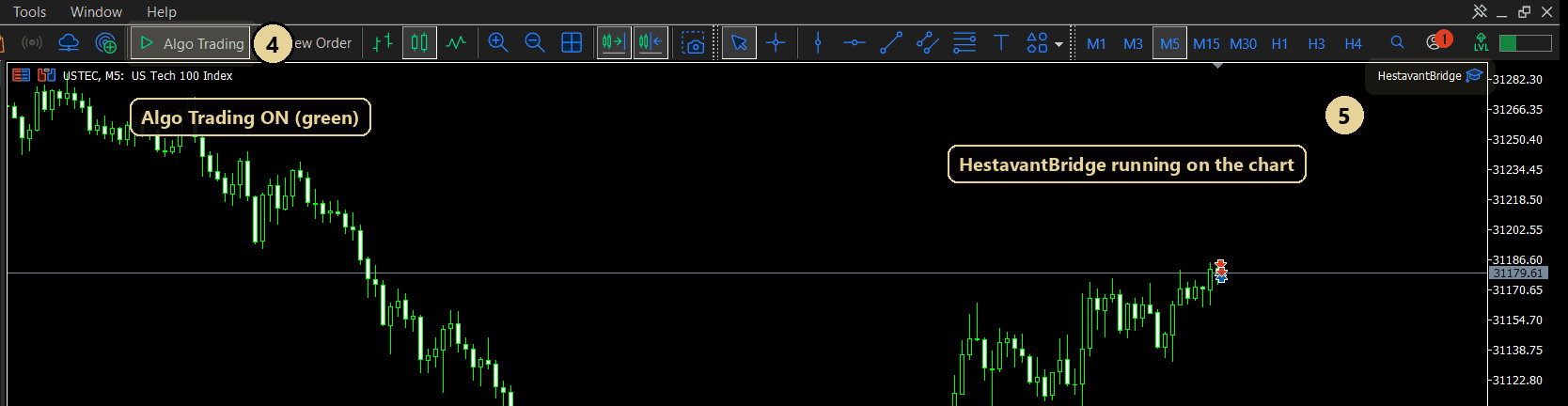
Make sure the Algo Trading button in the toolbar is on (green). HestavantBridge shows in the chart's top-right corner, and Hestavant Desktop's Your platform card turns green: Running · EA active on 1 account.
- 4
Connect it on the website
Go to Accounts → Connect an account, pick your prop firm or Live broker account, choose MetaTrader 5 and tick your account. Set the route's Instrument to your broker's symbol if it differs from the alert (for example
XAUUSDmorUSTEC). - 5
Match stops and targets to your strategy
On the website open Accounts, find the account and its signal, and set Stop / target:
- Points from my fill (recommended) - your strategy's stop and target distances, in points, measured from the price your platform actually fills you at. If your strategy sends entry 21050.25 with stop 21030.25, the stop is placed exactly 20 points from your fill.
- Chart prices - the exact levels in the alert. Use it only when your platform quotes the same prices as your TradingView chart.
- Scale - your platform's points per chart point. Leave it at 1 when the chart and the platform trade the same instrument.
- Point value / lot - the money a 1.00 price move is worth on one lot at your broker. Leave it blank to use the broker's own value; fill it in if your sizing looks wrong.
The route editor shows a live check of where the stop and target will land with your numbers. Then press Test connection - a dry run that checks everything without placing an order - and send a first alert to a demo account before switching the route live.
Keep it running
- 💡 Leave MetaTrader 5 open and logged in whenever your strategy may trade - Hestavant places every order through it, on your computer.
- 💡 Keep Start with Windows ticked in Hestavant Desktop, so it is ready after every restart. It sits quietly in the tray.
- 💡 If MetaTrader 5 closes or disconnects, reopen it and make sure your account is logged in. Hestavant Desktop turns its platform card red, tells you what to do, and reconnects by itself.
- 💡 Hestavant Desktop always shows the platform you chose on the website under Your platform. To switch, open Settings → Trading platform on the website.
Troubleshooting
Your platform is red: “Not running”+
MetaTrader 5 is closed or the EA is not on a chart. Open MT5, log in, and do step 2. HestavantBridge must show in the chart's top-right corner.
Orders are refused with “AutoTrading disabled”+
Turn on the Algo Trading toolbar button, and in the EA's settings (double-click it on the chart → Common) tick Allow Algo Trading.
A stop move is refused with “invalid stops”+
The new stop is on the wrong side of the current price (for a long, at or above the market), so the broker rejects it. This happens when price has moved past the level before the alert arrived.
“Symbol not found at this broker”+
Your broker names the symbol differently. Set the exact name - as shown in Market Watch - in the route's Instrument field.
Does it touch my manual trades?+
No. It only manages positions it opened itself, recognised by its own magic number (770077) and the comment HV:<trade id>.
Is anything opened to the internet?+
No. The EA and Hestavant Desktop talk through files in MetaTrader's own Common\Files folder on this computer - no ports, no web requests from the EA.