Set up Quantower
Quantower accounts are traded by the Hestavant Bridge strategy inside Quantower on your computer, with Hestavant Desktop signed in.
Beta - test on a demo account first and tell us if anything behaves unexpectedly.
- 1
Install the strategy from Hestavant Desktop
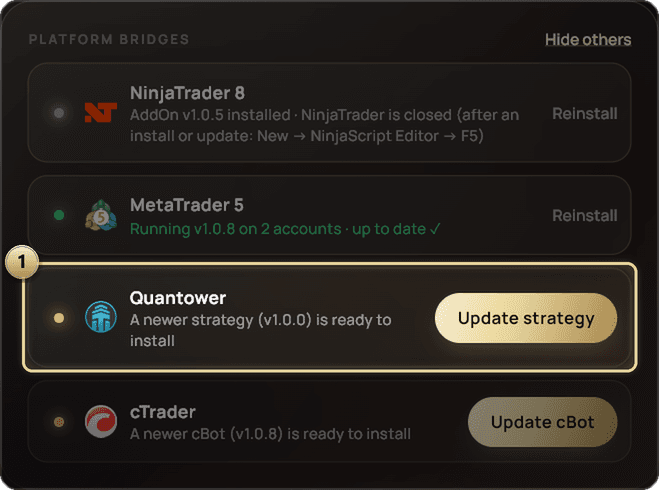
Open Hestavant Desktop. In the Platform bridges card, click Install strategy next to Quantower. Once it is there, the button reads Reinstall.
- 2
Open Strategies Manager
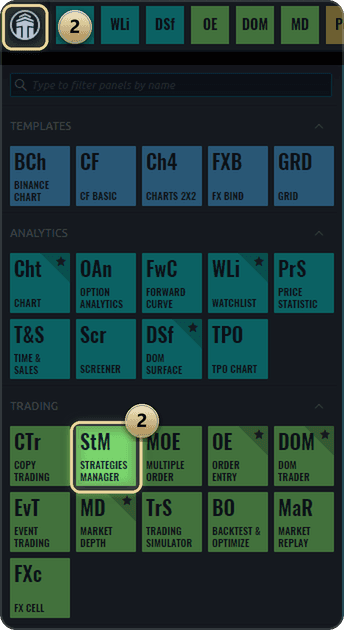
In Quantower click the Quantower logo (top left) to open the main menu, and under Trading click Strategies Manager.
- 3
Add Hestavant Bridge
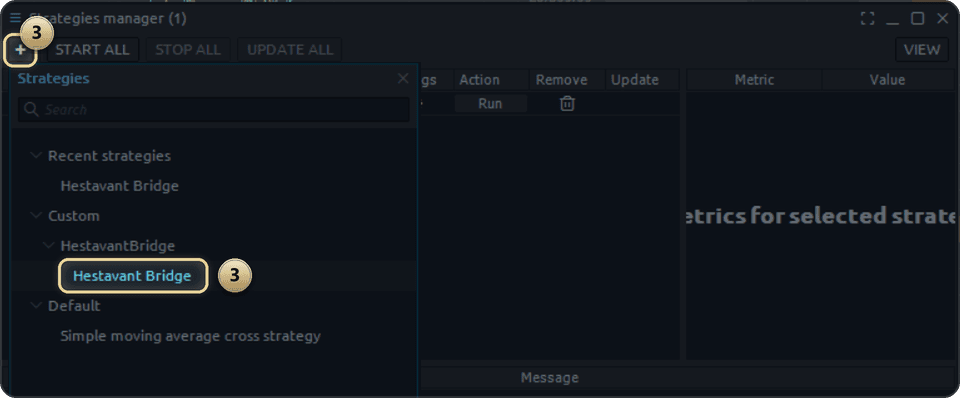
In Strategies Manager click +, then choose Custom → HestavantBridge → Hestavant Bridge.
- 4
Run it
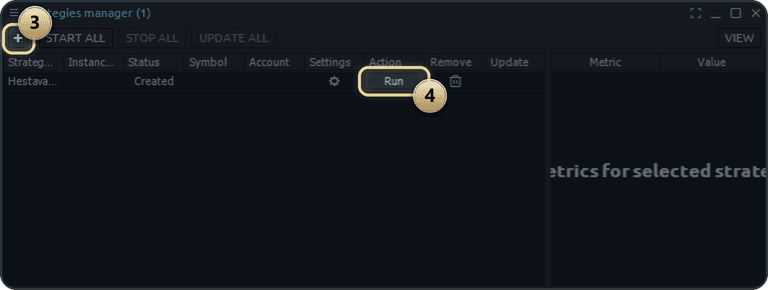
Hestavant Bridge appears in the list as Created. Click Run on its row - its status changes to Working.
- 5
Check that it is working
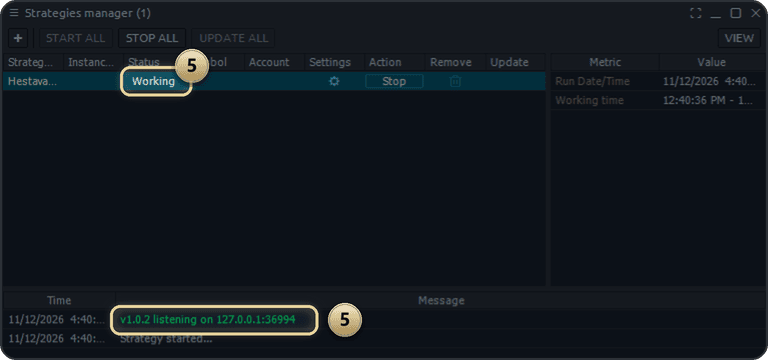
The status changes to Working, and the log at the bottom reads listening on 127.0.0.1:… - Hestavant Bridge is ready for orders from Hestavant Desktop. It only accepts connections from this same computer.
- 6
Start it with Quantower every time
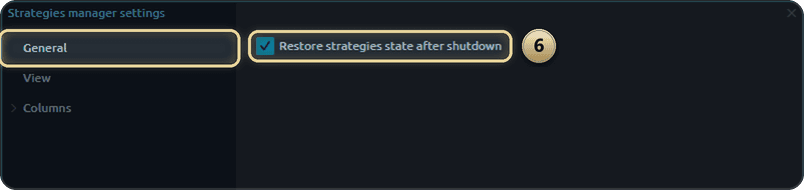
In Strategies Manager click ☰ (top left of the panel) → Settings. Under General, tick Restore strategies state after shutdown and close the window. Hestavant Bridge now starts by itself whenever Quantower opens.
- 7
Connect your account
Connect your prop firm or broker in Quantower as usual. In Hestavant Desktop the Quantower row turns green and the account appears under Linked accounts.
- 8
Tick it on the website
Go to Accounts → Connect an account, choose your firm and Quantower, and tick the account.
- 9
Match stops and targets to your strategy
On the website open Accounts, find the account and its signal, and set Stop / target:
- Points from the fill (recommended) - your strategy's stop and target distances, in points, measured from the price your platform actually fills you at. If your strategy sends entry 21050.25 with stop 21030.25, the stop is placed exactly 20 points from your fill.
- Chart prices - the exact levels in the alert. Use it only when your platform quotes the same prices as your TradingView chart.
- Scale - your platform's points per chart point. Leave it at 1 when the chart and the platform trade the same instrument.
The route editor shows a live check of where the stop and target will land with your numbers. Then press Test connection - a dry run that checks everything without placing an order - and send a first alert to a demo account before switching the route live.
Keep it running
- 💡 Leave Quantower open and logged in whenever your strategy may trade - Hestavant places every order through it, on your computer.
- 💡 Keep Start with Windows ticked in Hestavant Desktop, so it is ready after every restart. It sits quietly in the tray.
- 💡 If Quantower closes or disconnects, reopen it and make sure your account is logged in. Hestavant Desktop alerts you, shows what to do, and reconnects by itself.
- 💡 Hestavant Desktop trades every platform you have linked accounts on - each has its own row in the Platform bridges card, green while it is running.
Troubleshooting
The Quantower row says the strategy is not running+
Open Strategies Manager and press Run on Hestavant Bridge. With Restore strategies state after shutdown ticked it starts with Quantower from then on.
Quantower shows an update mark on Hestavant Bridge+
Click it - Hestavant Desktop has put in a newer version.
Does my firm allow this?+
Rules on automation differ - check your firm's rules before going live.