Set up Tradovate
Tradovate accounts - including most futures prop firm accounts - are traded through NinjaTrader 8 on your own computer. NinjaTrader and Tradovate share the same account system, so NinjaTrader logs in with your Tradovate credentials. You need NinjaTrader 8 installed and Hestavant Desktop signed in.
- 1
Choose Tradovate on the website, install the AddOn
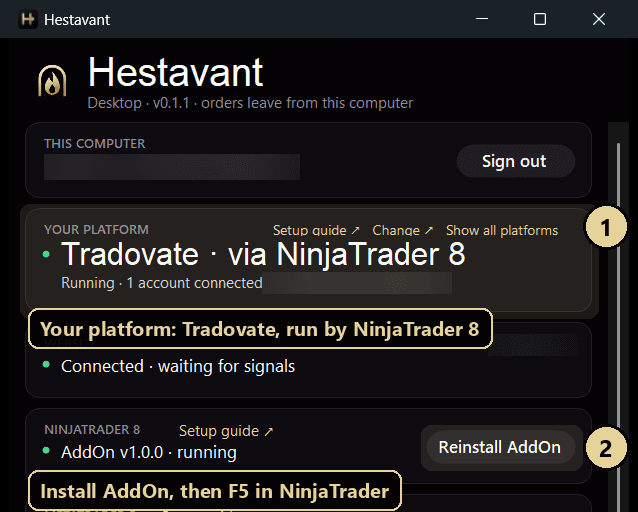
On the website choose Tradovate as your platform - during setup, or later under Settings → Trading platform. Hestavant Desktop then shows Your platform: Tradovate · via NinjaTrader 8 - the program to keep open is NinjaTrader.
In the NinjaTrader 8 card click Install AddOn, then in NinjaTrader open New → NinjaScript Editor and press F5 once. The NinjaTrader guide shows those two clicks with screenshots.
- 2
Prepare the account on Tradovate
Log in once at trader.tradovate.com with the username and password from your broker or prop firm, and sign the market data agreement when asked. Without it NinjaTrader cannot receive prices for the account.
- 3
Turn on Multi-provider in NinjaTrader
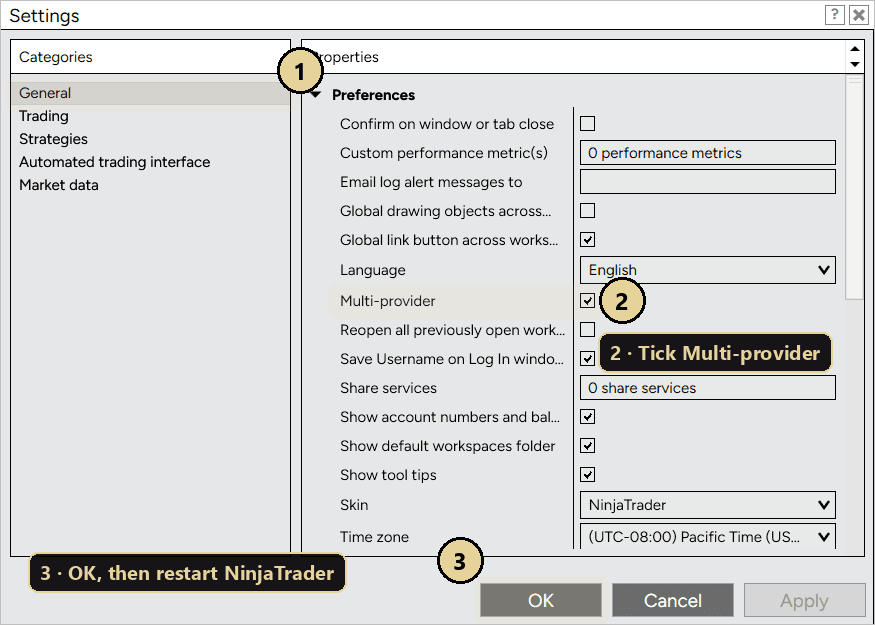
In NinjaTrader's Control Center open Tools → Settings (called Options in older versions) → General, tick Multi-provider, click OK, and restart NinjaTrader. This lets the Tradovate connection run alongside any other connection.
- 4
Add the Tradovate connection
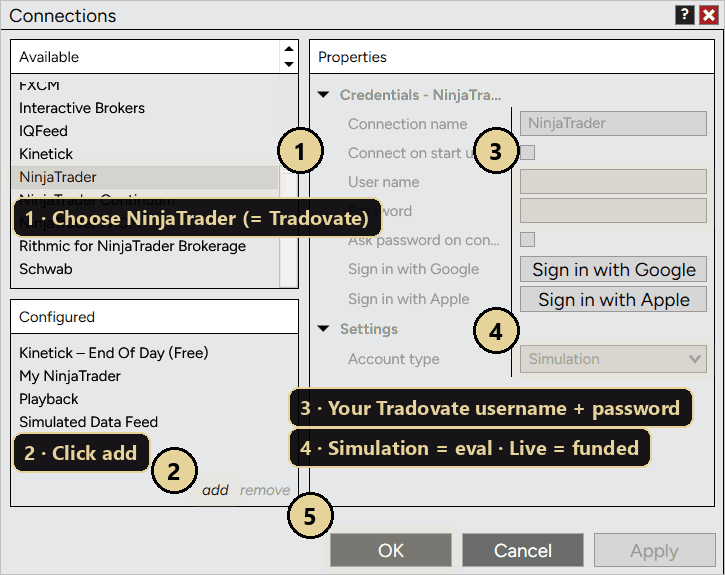
Open Connections → Configure. In the Available list choose NinjaTrader - this is the connection type for Tradovate accounts - and click Add.
Enter your Tradovate username and password. Set the account type to Simulation for evaluation accounts, or Live for funded and live accounts. Give the connection a name you will recognise, such as your firm's name, and click OK.
- 5
Connect and check it is running
Select the new connection under Connections - it turns green. In Hestavant Desktop the Your platform card turns green and lists your Tradovate account. On the website go to Accounts → Connect an account, choose your firm and Tradovate, and tick it.
- 6
Match stops and targets to your strategy
On the website open Accounts, find the account and its signal, and set Stop / target:
- Points from my fill (recommended) - your strategy's stop and target distances, in points, measured from the price your platform actually fills you at. If your strategy sends entry 21050.25 with stop 21030.25, the stop is placed exactly 20 points from your fill.
- Chart prices - the exact levels in the alert. Use it only when your platform quotes the same prices as your TradingView chart.
- Scale - your platform's points per chart point. Leave it at 1 when the chart and the platform trade the same instrument.
The route editor shows a live check of where the stop and target will land with your numbers. Then press Test connection - a dry run that checks everything without placing an order - and send a first alert to a demo account before switching the route live.
Keep it running
- 💡 Leave NinjaTrader 8 open and logged in whenever your strategy may trade - Hestavant places every order through it, on your computer.
- 💡 Keep Start with Windows ticked in Hestavant Desktop, so it is ready after every restart. It sits quietly in the tray.
- 💡 If NinjaTrader 8 closes or disconnects, reopen it and make sure your account is logged in. Hestavant Desktop turns its platform card red, tells you what to do, and reconnects by itself.
- 💡 Hestavant Desktop always shows the platform you chose on the website under Your platform. To switch, open Settings → Trading platform on the website.
Troubleshooting
The connection stays red or asks for a market data agreement+
Log in at trader.tradovate.com and sign the market data agreement, then reconnect in NinjaTrader.
Your platform says “Only simulation accounts are visible”+
NinjaTrader is running but your Tradovate connection is not connected. Connect it under Connections (step 5).
I don't see “NinjaTrader” in the Available list+
Turn on Multi-provider in Tools → Settings → General (step 3) and restart NinjaTrader. Keep NinjaTrader updated to the current 8.1 release.
Which account type do I choose?+
Evaluation and combine accounts are usually Simulation; funded and live accounts are Live. Your firm's help centre confirms which applies.
Does my firm allow this?+
Most Tradovate-based firms allow NinjaTrader and automation, but rules differ - check your firm's rules on automated trading before going live.